 Wael's Digital Garden
Proxmox VM - Ensure SCSI0 in Boot Order for Talos OS
Proxmox VM - Ensure SCSI0 in Boot Order for Talos OS#
Symptom#
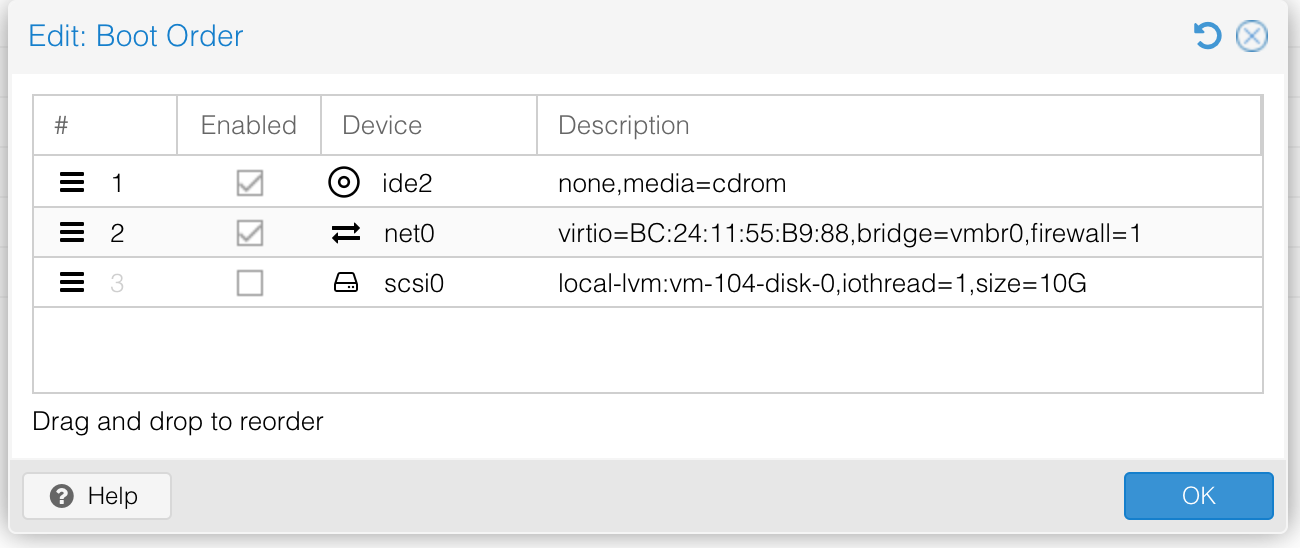
After installing Talos Linux to a Proxmox VM's SCSI disk (e.g., scsi0) and removing the installation ISO, the VM may fail to boot, potentially getting stuck in a PXE/no boot loop.
Cause#
The Proxmox VM's boot order might not have the SCSI disk (e.g., scsi0) enabled or prioritized. This can happen if disks were deleted and re-added during experimentation.
Solution#
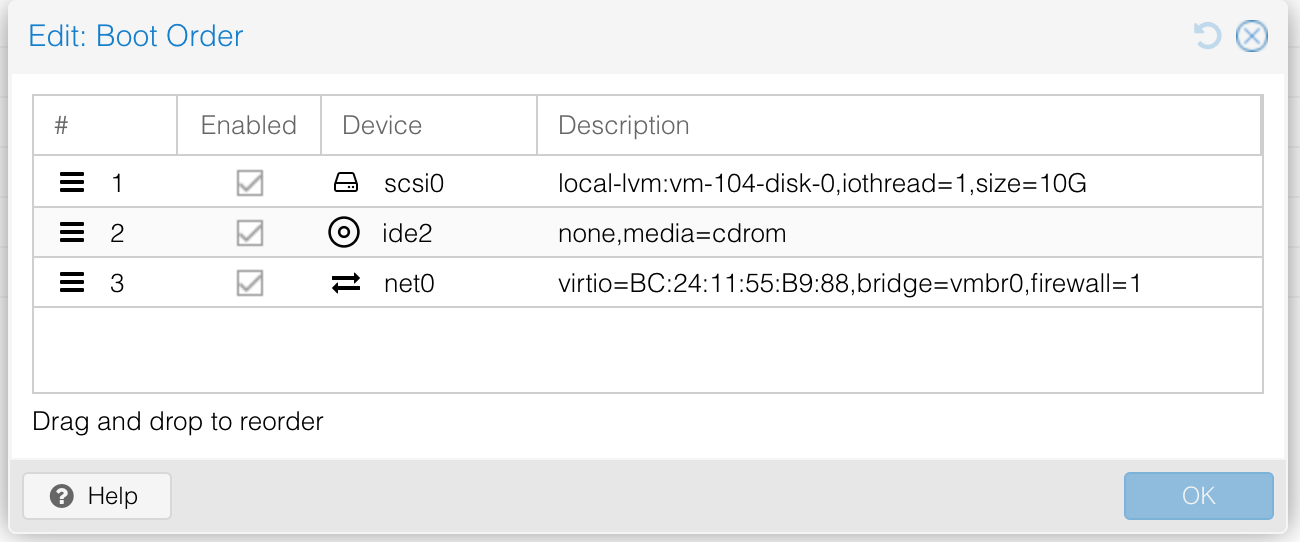
- In the Proxmox VM's hardware settings, go to "Options" -> "Boot Order."
- Ensure the checkbox for the SCSI disk (e.g.,
scsi0) where Talos OS was installed is enabled. - Move the SCSI disk to the top of the boot order, or at least above any network boot options if not intending to PXE boot.
This ensures the VM attempts to boot from the disk containing the persistent Talos installation.
Screenshots#
These screenshots came from my work on Kubernetes on Proxmox - Research.